To rebind mountain everest display keys davinci resolve color grading shortcuts, open the Base Camp software, select your Everest 60 or Max keyboard, click the Display Pad or top-row keys, and assign DaVinci Resolve's native shortcuts (like Alt+S for a new serial node, Shift+H for highlight, or Cmd/Ctrl+D to bypass a node). Use the per-key macro recorder to chain trim, wipe, and grade-copy commands, then save the profile as "Resolve Color" so it auto-loads when DaVinci is in focus. The result: every color page action sits one tap away on a custom OLED key.
Why the Mountain Everest is a Colorist's Secret Weapon in 2026
DaVinci Resolve 19 and the newer 20.x builds shipped in 2026 keep piling on shortcuts — Magic Mask, Relight FX, Cognition AI nodes — and the color page now has more keyboard combos than most colorists can memorize. The Mountain Everest 60 and Everest Max solve that with two things off-the-shelf keyboards can't match: a removable Display Pad with four customizable OLED keys, and a Media Dock with a programmable rotary dial. When you rebind those to DaVinci Resolve's color grading commands, you stop hunting for shortcuts and start grading.
When shopping for rebind mountain everest display keys davinci resolve color grading, it pays to compare specs, capacity, and real-world runtime before committing.
The trick is knowing exactly which Resolve actions deserve dedicated keys, and how to layer them with Base Camp's profile system so your gaming layout doesn't get overwritten. This guide walks through the full rebind workflow, the shortcuts worth assigning first, and the supporting peripherals that round out a color suite.
Step 1: Install Base Camp and Create a DaVinci Resolve Profile
Download the latest Base Camp from Mountain's site (version 2.x as of 2026) and plug your Everest in via USB-C. Open the app and you'll see your keyboard's live layout. In the top-left, click Profiles → New Profile and name it Resolve Color. Set the trigger to "Application focus" and browse to your DaVinci Resolve executable — on Windows that's usually C:\Program Files\Blackmagic Design\DaVinci Resolve\Resolve.exe, on macOS it's the standard app bundle in /Applications. This way the keyboard auto-switches to your color layout the moment Resolve is in front.
Keep your default gaming or typing profile untouched — Base Camp will hand control back the instant you tab out. If you also use Fusion or Fairlight, duplicate the profile and tweak the bindings; profiles are cheap and switching is instant.
Step 2: Map the Display Pad to Node and Grade Commands
The Display Pad's four OLED keys are the highest-value real estate on the whole keyboard because each one shows a custom icon. For color grading, the four assignments I recommend are:
- Key 1 — Add Serial Node (
Alt+SWindows /Opt+SMac). Icon: a chain link. - Key 2 — Add Parallel Node (
Alt+P/Opt+P). Icon: two parallel bars. - Key 3 — Bypass Selected Node (
Ctrl+D/Cmd+D). Icon: a strikethrough circle. - Key 4 — Grab Still (
Ctrl+Alt+G/Cmd+Opt+G). Icon: a camera.
To assign one: click the key in Base Camp's layout view, choose Keystroke, then press the combo. Upload a 32×32 PNG icon for each (Mountain's community library has Resolve-themed packs) and the OLED will update instantly. Now your hand doesn't have to leave the home row to spin up nodes.
Step 3: Reassign the Top Row for Color Page Workflow
The top row of the Everest (F-keys plus the volume/media stack on the Max) is where you put the actions you fire dozens of times per minute. My personal layout for 2026:
F1→ Toggle Wipe (Cmd/Ctrl+W)F2→ Reset Current Node Grade (Cmd/Ctrl+Home)F3→ Show/Hide Scopes (Cmd/Ctrl+Shift+W)F4→ Toggle Highlight (Shift+H)F5→ Append Node to End (Alt+K)F6→ Previous Clip (Up Arrow)F7→ Next Clip (Down Arrow)F8→ Play Around Current (/)
In Base Camp, click each F-key, choose Keystroke, capture the combo, and check the "Block original" toggle so Windows or macOS doesn't intercept it. If you grade with HDR scopes constantly, swap F3 for the waveform-only shortcut instead.
Step 4: Use the Media Dock Dial for Trim and Color Wheels
On the Everest Max, the Media Dock includes a rotary encoder. Out of the box it's a volume wheel, but in Base Camp you can rebind rotation to JKL shuttle (J = reverse, L = forward) or to frame step (left/right arrows). For color work I assign:
- Rotate left/right → Frame step (precise trim)
- Press dial → Play/Pause (
Space) - Long press → Loop playback (
Cmd/Ctrl+/)
It's not a full panel like a DaVinci Micro Panel, but for solo colorists and editors who occasionally grade, it removes a huge chunk of mouse travel.
Step 5: Record Macros for Repetitive Grade Workflows
Base Camp's macro recorder is where rebinding crosses from "shortcuts" into actual automation. Two macros I run constantly:
Macro: New Node + Qualifier. Sequence: Alt+S (new serial node) → Q (activate qualifier) → Shift+H (highlight on). One key and you're picking colors in under a second.
Macro: Copy Grade to Next Clip. Sequence: Cmd/Ctrl+C on the timeline thumbnail → Down Arrow → Cmd/Ctrl+V. Useful when you're carrying a base grade across a scene.
Save macros to the side-column keys (the Max has a vertical strip) so you don't lose typing keys in the process.
Pairing Your Everest With the Right Mouse
Color grading isn't a keyboard-only job — you're constantly dragging color wheels, drawing power windows, and nudging curves. A precise, low-latency mouse with mappable side buttons doubles the value of your rebind work because you can offload modifier-heavy actions like "hold Alt while scrubbing" to a thumb button. Below is a quick comparison of three mice that pair well with the Everest in a Resolve workflow.
| Mouse | Sensor / DPI | Programmable Buttons | Best For |
|---|---|---|---|
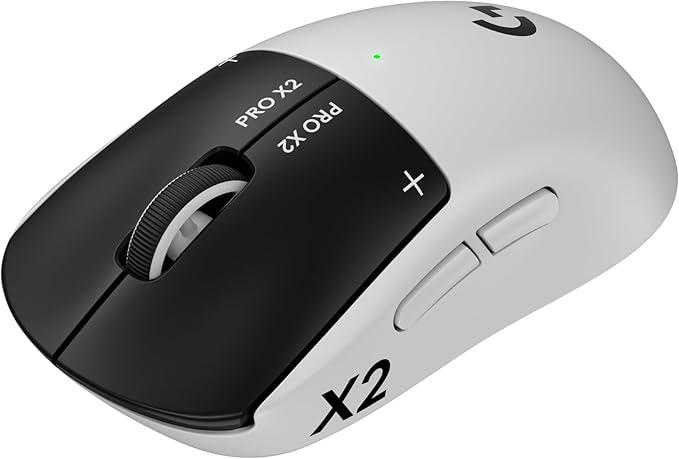
| Logitech G PRO X2 SUPERSTRIKE | HERO 2 / 44K DPI | 5 | Pixel-precise window pulls |
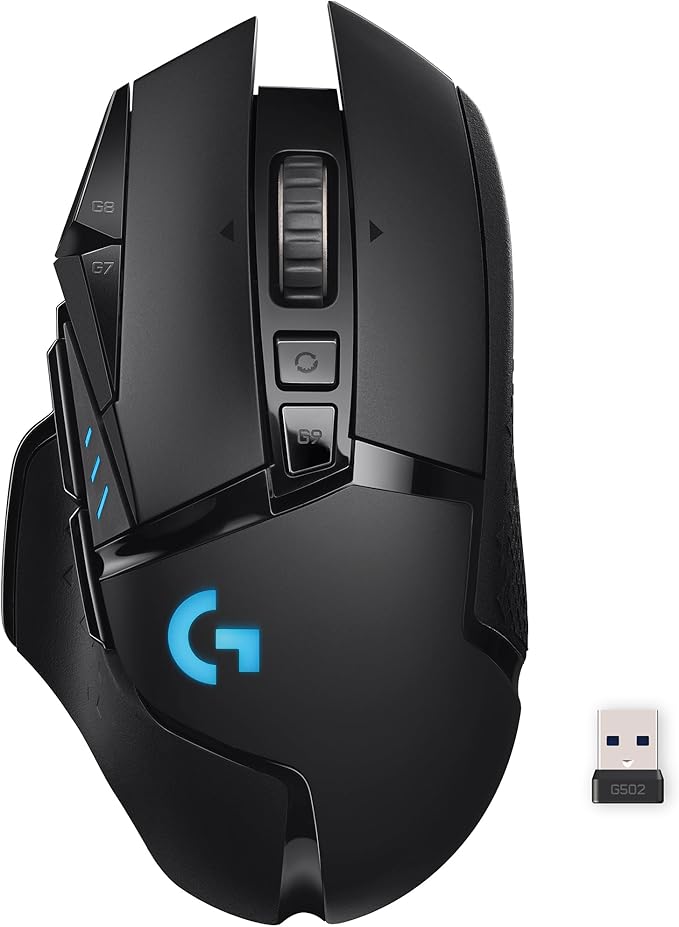
| Logitech G502 Lightspeed | HERO 25K | 11 | Macro-heavy colorists |
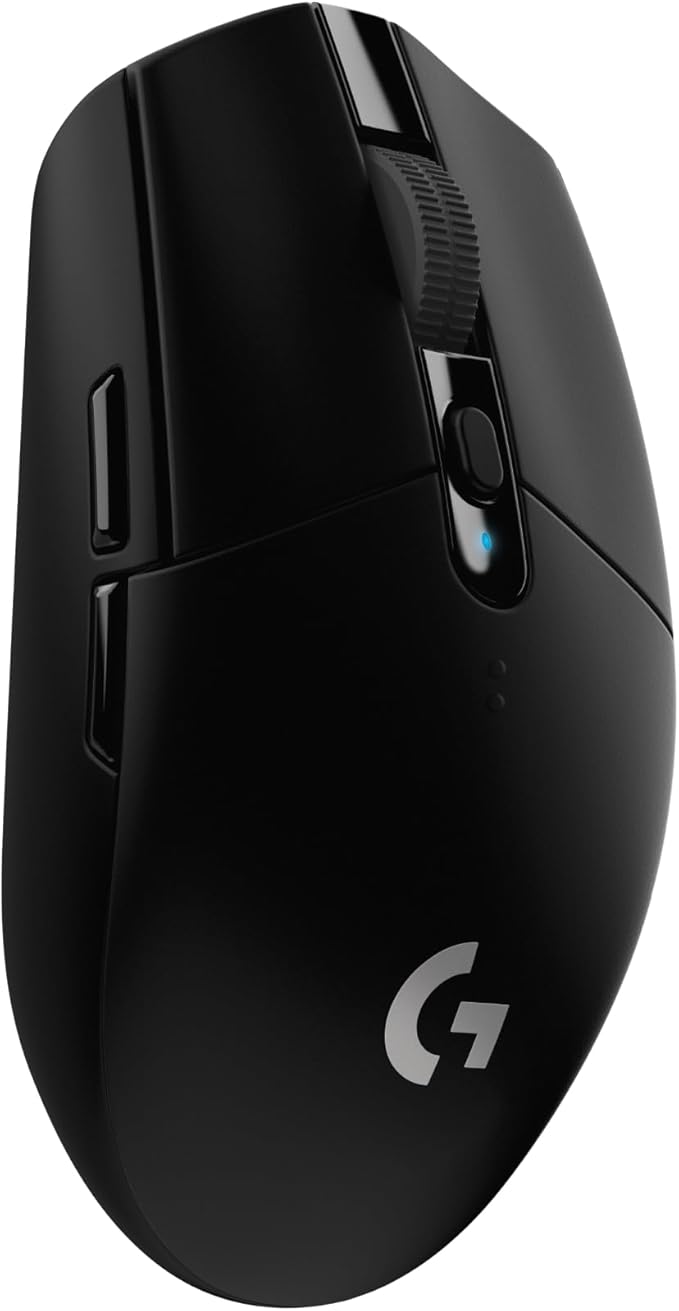
| Logitech G305 Lightspeed | HERO / 12K DPI | 6 | Budget wireless grading |
Logitech G PRO X2 SUPERSTRIKE — Best Overall for DaVinci Resolve
The G PRO X2 SUPERSTRIKE is the mouse I reach for when tracking power windows and pulling subtle curve adjustments because its second-gen HERO 2 sensor stays linear all the way up to 44K DPI and its hybrid switches register at sub-millisecond latency. For grading you don't need 44K — you need consistency at low DPI — and this is one of the few wireless mice that delivers that. Pair it with the Everest's Display Pad and the workflow becomes hand-on-mouse, thumb-on-keyboard. Check the Logitech G PRO X2 SUPERSTRIKE on Amazon.
Logitech G502 Lightspeed — Best for Macro-Heavy Colorists
If your rebind plan leans on macros, the G502 Lightspeed gives you 11 mappable buttons, including a tilt wheel and a sniper button that's perfect for slowing DPI to a crawl when you're drawing a precise mask around a face. Map the sniper to 250 DPI for window drawing and the tilt wheel to node navigation in Resolve, and you'll feel the difference immediately. Check the Logitech G502 Lightspeed on Amazon.
Logitech G305 Lightspeed — Best Budget Pick
Not every colorist needs a $160 mouse. The G305 runs on a single AA, has six programmable buttons, and the original HERO sensor is still plenty for color work where you're not tracking targets at 240Hz. If you're a freelance editor who occasionally grades, this pairs with the Everest 60 for a complete wireless desk under $250. Check the Logitech G305 on Amazon.
Common Rebinding Mistakes to Avoid
Three pitfalls trip up most people the first time they rebind mountain everest display keys davinci resolve color grading shortcuts:
- Forgetting to block the original key. If you map F4 to Toggle Highlight but leave the OS shortcut active, Windows will still pick up Alt+F4 if you fat-finger it.
- Skipping the per-app profile. Without a focus trigger, your gaming macros will fire inside Resolve and ripple-delete a clip during a grade. Set the trigger to the Resolve executable, every time.
- Not exporting your profile. Base Camp can export profiles to a
.bcpfile. Back yours up after every major edit so a Windows reinstall doesn't cost you an afternoon of remapping.
Building Out the Rest of Your Color Suite
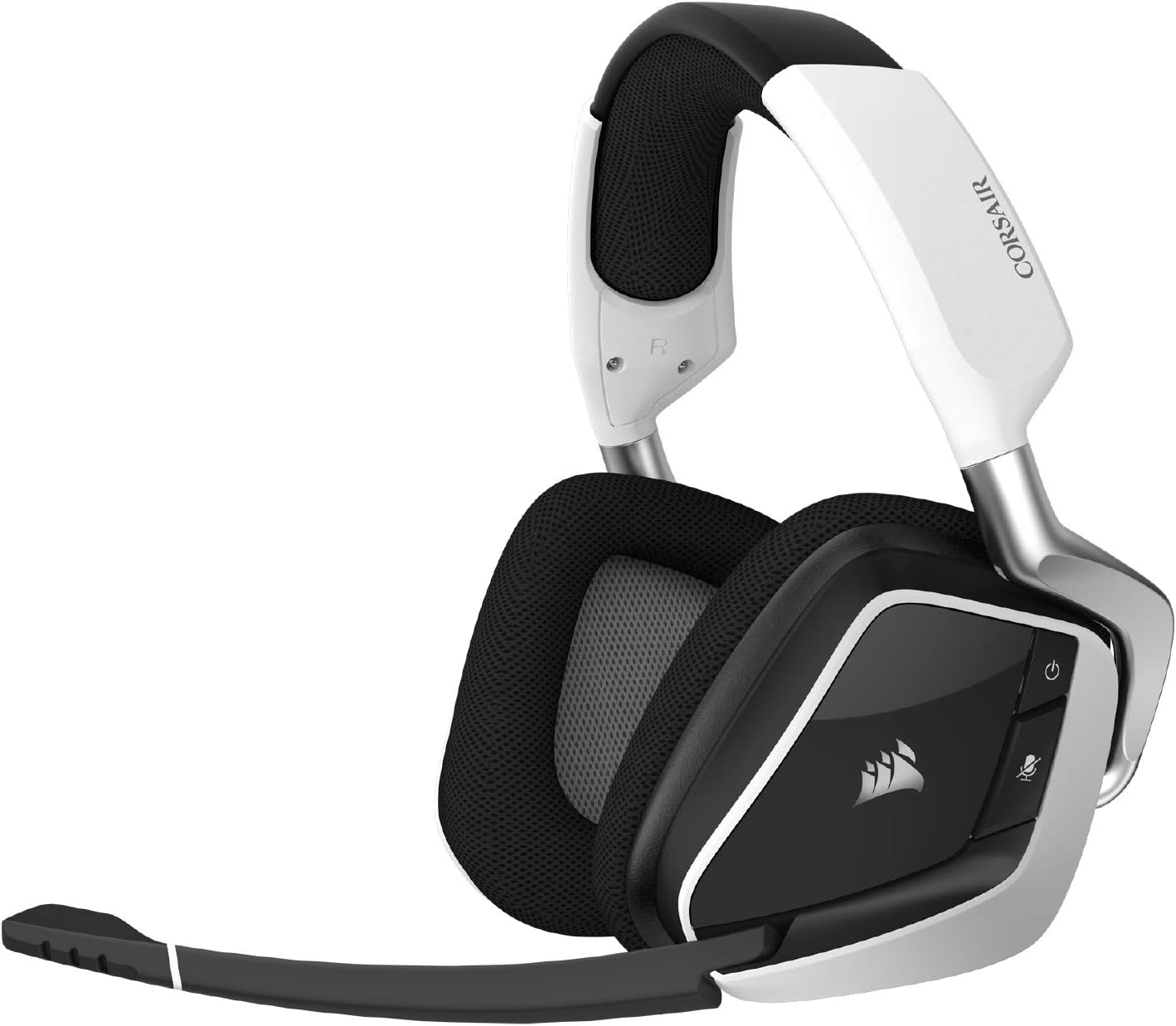
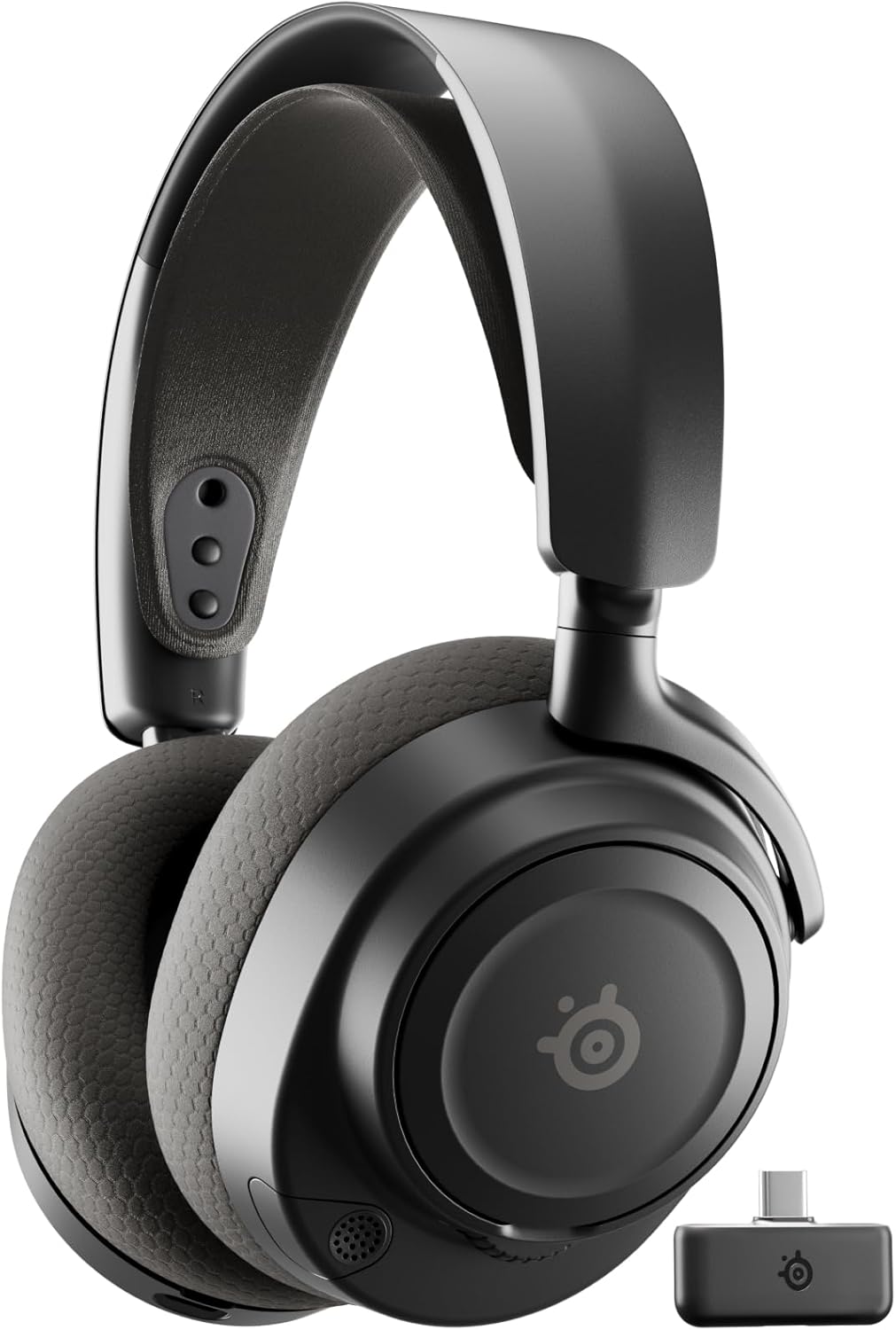
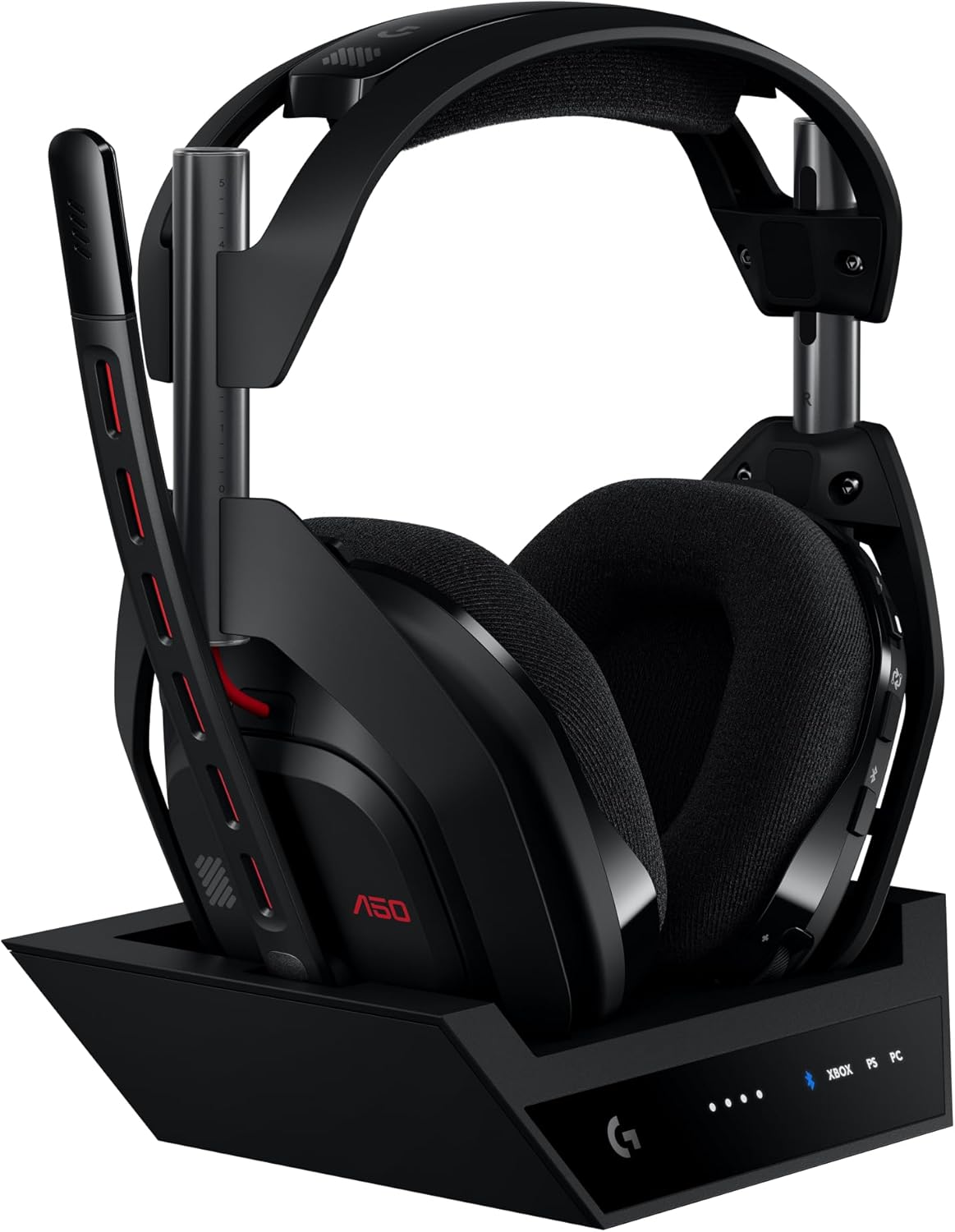
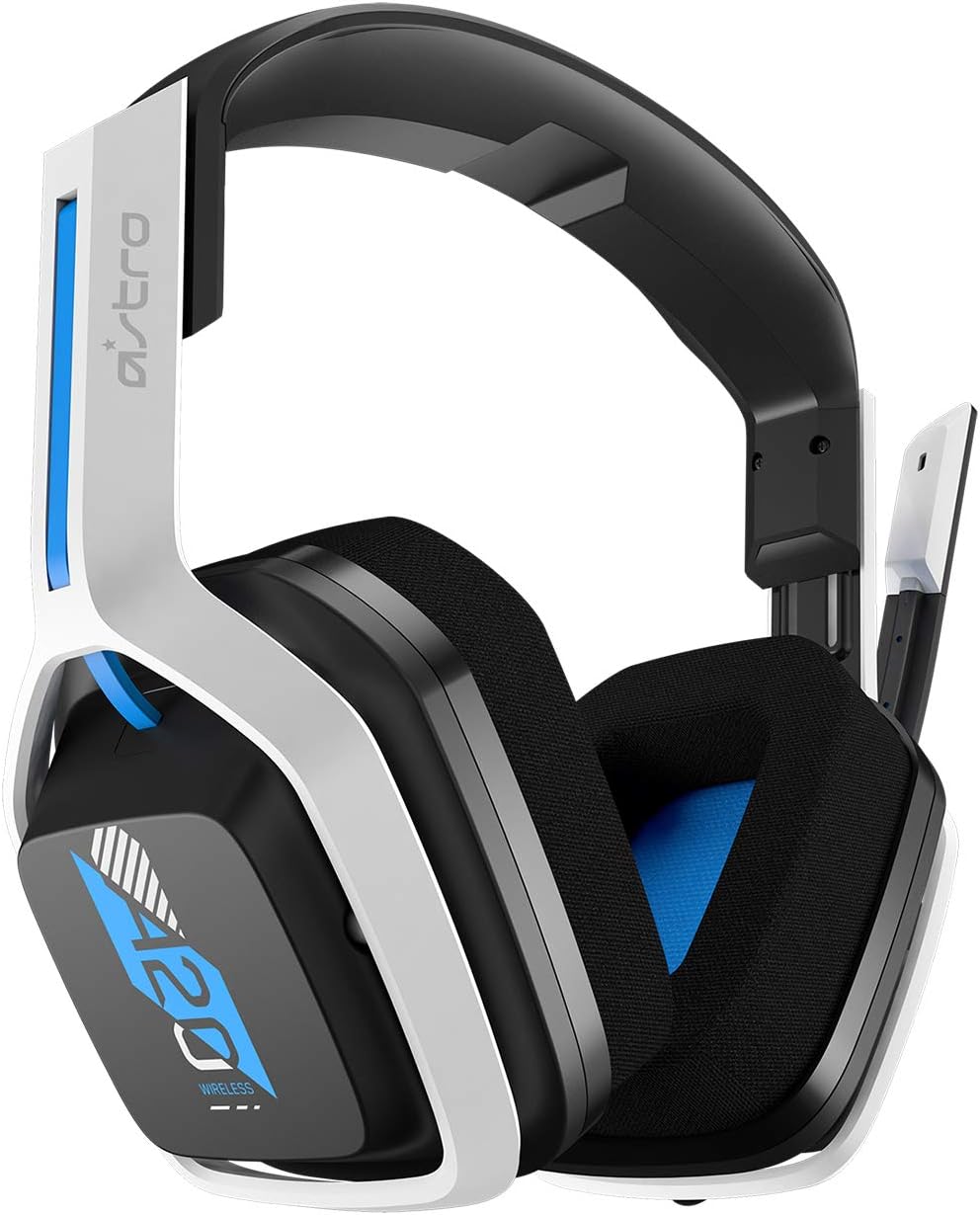
If you want to round out the setup, see our guides on the best keyboards for DaVinci Resolve editors in 2026, the best mice for video editing and color grading, and our long-term review of the Mountain Everest Max. For audio monitoring during finishing passes, the best gaming headsets for video editors piece covers closed-back options with neutral tuning.
Frequently Asked Questions
Do Mountain Everest keymaps work on macOS for DaVinci Resolve Studio?
Yes. Base Camp has native macOS builds and the Everest 60 / Max both expose the same per-key programming over USB-C. Just remember to use macOS modifier names (Cmd, Opt) when capturing keystrokes — Base Camp will translate the scan codes correctly, but if you flip the profile to a Windows machine you'll need to remap the modifier-heavy combos.
Can I assign the Display Pad keys to DaVinci Resolve's Fairlight or Fusion pages?
Absolutely. Create separate Base Camp profiles for Fairlight and Fusion and trigger them from the same Resolve executable using Base Camp's manual profile switcher (a key combo like Fn+1, Fn+2, Fn+3). Color, Fusion, and Fairlight have very different shortcut needs — node math vs. timeline scrubbing vs. audio mixing — and dedicated profiles outperform any one-size-fits-all layout.
Will rebinding the Everest break my gaming hotkeys?
No, as long as you set the Resolve profile to trigger only when DaVinci Resolve is the focused application. Base Camp restores your default profile (or your game-specific one) the instant another window takes focus. If you find profiles are sticking, restart Base Camp's background service and confirm "Run at startup" is enabled.
What's the best DaVinci Resolve shortcut to put on a Display Pad OLED key?
If you only get one, make it Add Serial Node (Alt+S / Opt+S). It's the single most-used action on the color page and it's awkward to chord. Runner-up is Grab Still (Ctrl/Cmd+Alt/Opt+G) because reference stills are how you maintain shot-to-shot consistency, and the OLED can show a literal camera icon to remove any ambiguity.
Does the Everest 60 (without the Display Pad) work for color grading?
Yes, but you give up the OLED icons. The Everest 60 still supports full per-key programming through Base Camp, so you can map the function layer (Fn + number row) to your most-used color page commands. The Max is the better buy if grading is a primary workflow because the Display Pad and Media Dock together replace a separate stream deck.
Can I use a Mountain Everest alongside a DaVinci Micro Panel?
Yes, and it's actually the ideal setup. The Micro Panel handles the analog parts of grading — lift, gamma, gain wheels and trackballs — while the Everest handles the discrete commands: node management, scope toggles, qualifier activation, still grabs. Map the Everest to everything the panel doesn't have a dedicated control for and you've covered the entire color page.
How often does Base Camp get updated, and will my profiles survive updates?
Mountain has shipped roughly quarterly updates through 2025 and into 2026, mostly adding macro features and OLED icon support. Profiles are stored in your user directory (not inside the app bundle) and have survived every major update so far. Still — export your profile to a .bcp file after any major rebind session. Two minutes of insurance against an afternoon of rework.
Key Takeaways
- Choosing the right rebind mountain everest display keys davinci resolve color grading means matching capacity and output ports to your actual devices
- Always check actual watt-hours (Wh), not just watts — runtime depends on Wh, not peak output
- Also covers: mountain everest max display dial davinci resolve
- Also covers: everest media dock color page shortcut
- Also covers: mountain everest base camp color grade macros
- Compare price-per-Wh across models to find the best value for your budget