If you have shoulder impingement and code for a living, a traditional keyboard is quietly making it worse. The best split ergonomic keyboards for programmers with shoulder impingement let each half sit at true shoulder-width, keeping your upper arms relaxed at your sides instead of internally rotating inward to reach a centered tenkeyless. That single geometric change reduces subacromial compression and lets the supraspinatus tendon glide freely. In 2026, the split mechanical market has matured: tenting, negative tilt, columnar stagger, and programmable thumb clusters are standard. Below is exactly what to look for, how to set it up, and the complementary peripherals that finish the picture.
Why shoulder impingement demands a split layout
Shoulder impingement happens when the rotator cuff tendons get pinched between the humeral head and the acromion. The number-one mechanical aggravator at a desk is internal rotation of the shoulders combined with protracted scapulae — exactly the posture a 14-inch-wide unibody keyboard forces. Your hands sit 7–9 inches apart. Your shoulders are 16–20 inches apart. The delta is absorbed by your shoulder joints, all day, every workday.
The best best split ergonomic keyboards for programmers with shoulder impingement for your situation depends on how you plan to use it and where.
A split keyboard fixes this by letting each half move outward until your forearms run straight out from your shoulders. For most programmers, that means the halves end up 8–14 inches apart, sometimes farther. The shoulders externally rotate to neutral, the chest opens, the upper traps stop firing to stabilize the protracted position, and the impingement window opens back up. Many programmers report symptom reduction within two weeks just from this change.
The five features that actually matter
1. True separation, not faked split
Avoid “split-style” keyboards that are fused in the middle. You need two independent halves connected by a TRRS or USB-C cable long enough to position each half under its respective shoulder. Look for at least 24 inches of inter-half cable, or a wireless split that pairs both halves to a single dongle.
2. Tenting (lateral tilt)
Tenting rotates each half so the inner edge is higher than the outer edge, putting your forearms into a neutral handshake position rather than full pronation. For shoulder impingement, 10–20 degrees of tenting is the sweet spot. Aggressive 45–90 degree tenting (Ergodox-style on stands, or fully vertical keyboards) can over-correct and load the long head of the biceps tendon, which is often already irritated in impingement patients.
3. Negative tilt
The front edge of the keyboard should sit higher than the back edge — the opposite of how traditional keyboards are designed. Negative tilt keeps your wrists from extending upward, which closes the carpal tunnel and chains tension up into the forearm, shoulder, and neck. Most quality split keyboards either ship with negative-tilt feet or let you mount them on tripod plates.
4. Columnar or ortholinear layout
Row-staggered layouts were designed for typewriter linkages, not human fingers. A columnar layout aligns each key directly above the one below it, matching how your fingers actually move. For programmers hammering brackets, semicolons, and modifier combos thousands of times a day, the reduced lateral finger travel translates to less forearm rotational load — which translates to less compensation from the shoulder.
5. Programmable thumb clusters
Pinkies are the weakest, most strain-prone fingers. A keyboard with 3–6 thumb keys per side lets you move Shift, Ctrl, Backspace, Enter, and layer-toggles off the pinky and onto the thumb. For programmers, this is the single biggest reduction in repetitive hand strain you can make, and it pays dividends up the kinetic chain.
The mouse problem nobody talks about
Here’s the trap: you buy a perfect split keyboard, position both halves at shoulder-width, and then reach 18 inches to the right for your mouse. Your right shoulder spends eight hours abducted and internally rotated, and the impingement comes right back. The split keyboard only works if your mouse comes inboard with it.
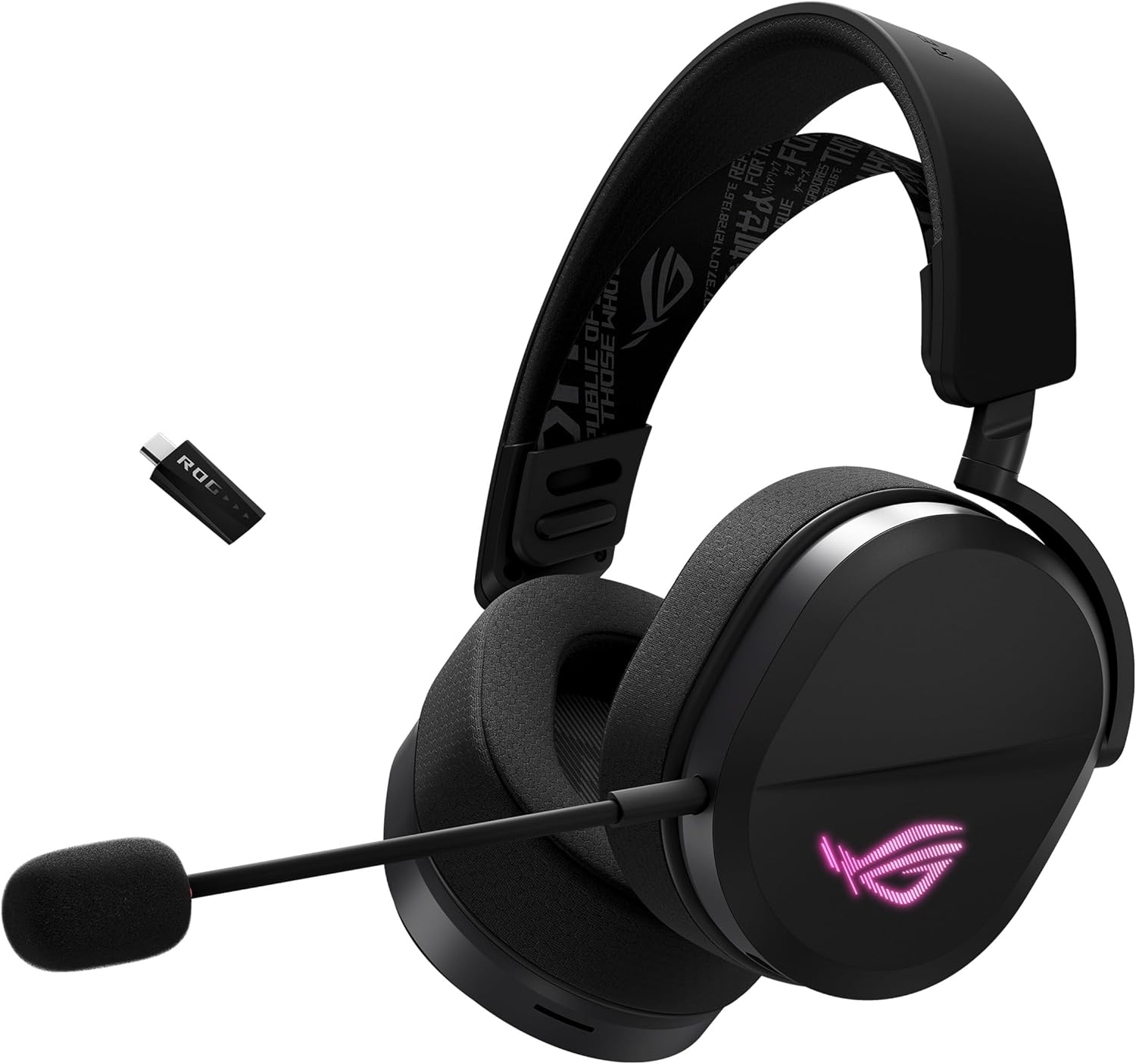
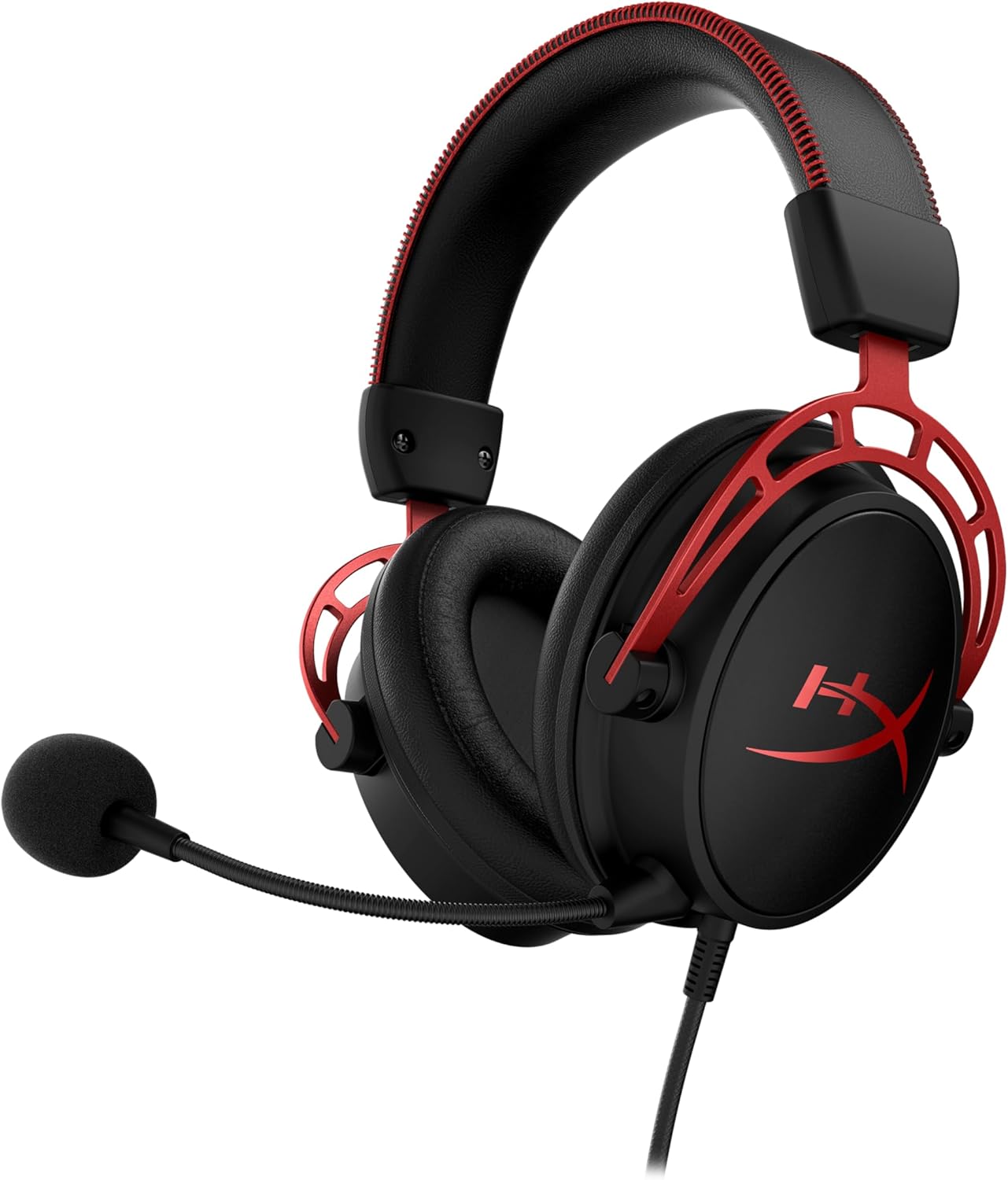
Three solutions: a lightweight wireless mouse that you can place between or just outside the right half, a vertical mouse, or a trackball. Most programmers with shoulder issues do best with a featherweight wireless mouse positioned just outside the right keyboard half, because it preserves precision for IDE work, diagramming, and the occasional gaming break. See our guide on best lightweight wireless mice for RSI for the full breakdown.
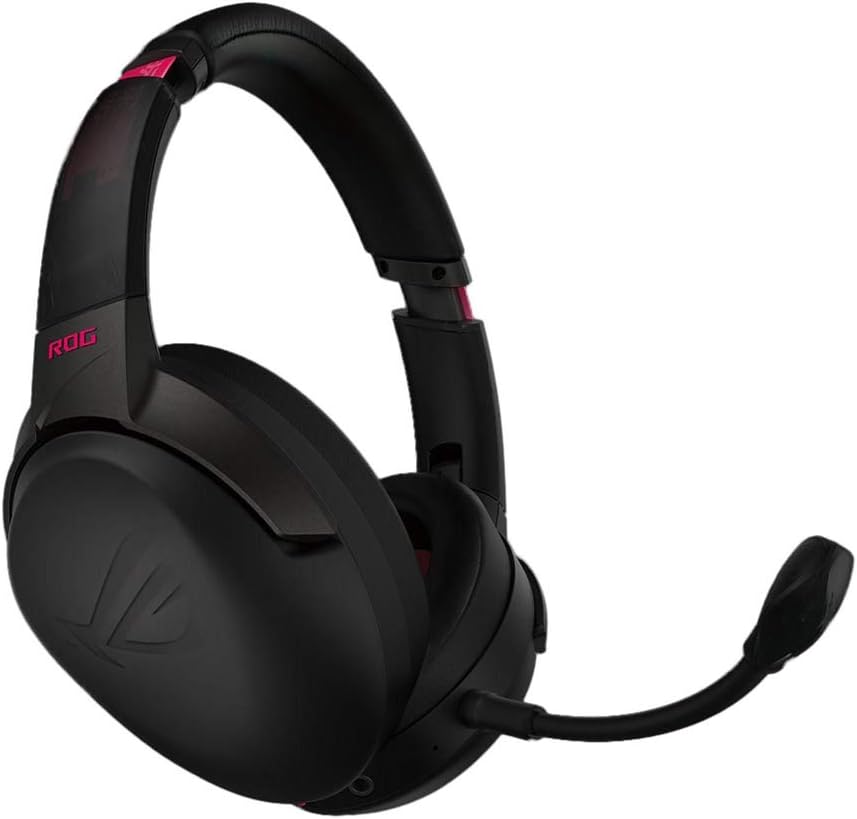
Recommended complementary mice for your split setup
Since the keyboard half of the equation is brand-agnostic (the best split boards in 2026 are mostly small-batch — ZSA Moonlander, Kinesis Advantage360, Glove80, Dygma Defy — and rotate inventory frequently), the highest-leverage Amazon purchases for shoulder-impingement-conscious programmers are the mice that complete the setup. All three picks below are light enough to keep your right arm relaxed and place close to your keyboard half.
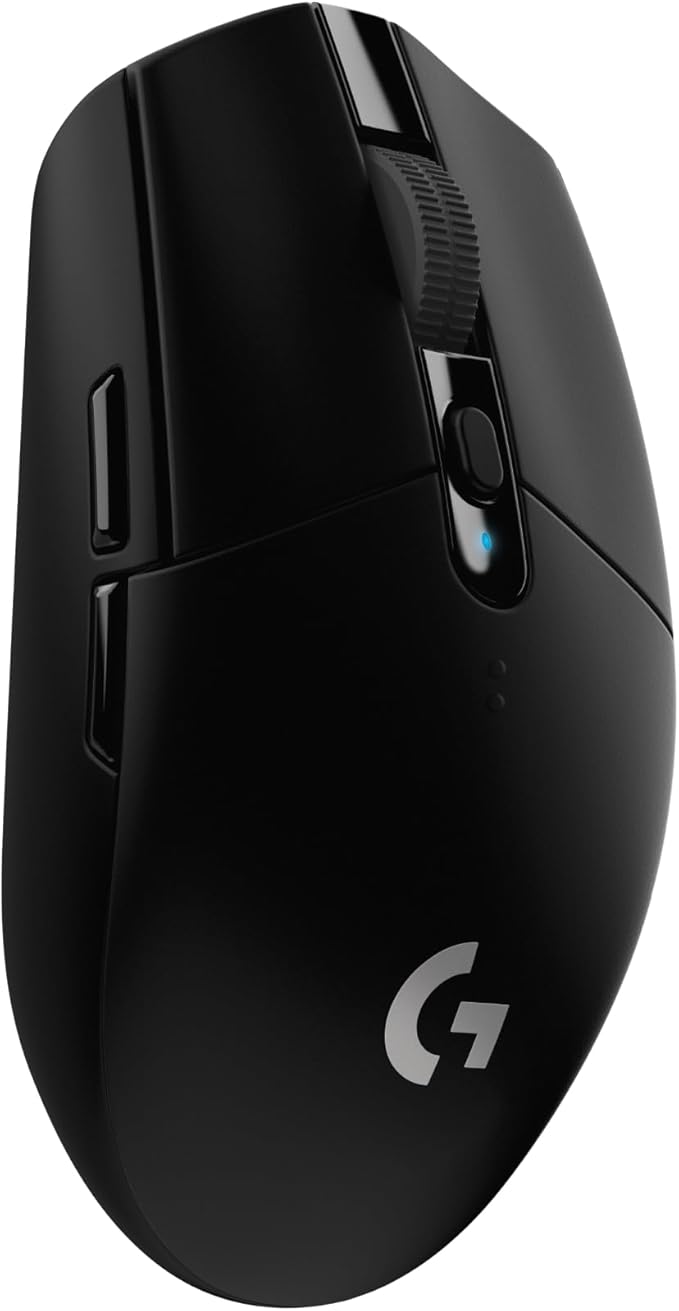
Logitech G305 Lightspeed Wireless — best lightweight pick
At 99 grams with the AA battery installed, the G305 is the lightest fully-featured wireless mouse on this list. The low mass matters: every gram you lift and reposition during mouse movement is a gram your deltoid and rotator cuff have to manage. The Lightspeed wireless is genuinely indistinguishable from wired for code editing and terminal work, and the 250-hour battery life means you’re not tethered to a charging cable that pulls the mouse off-axis. Pair it with a large desk mat so you can keep DPI low (1200–1600) and move from the elbow rather than the wrist. Check the Logitech G305 on Amazon.
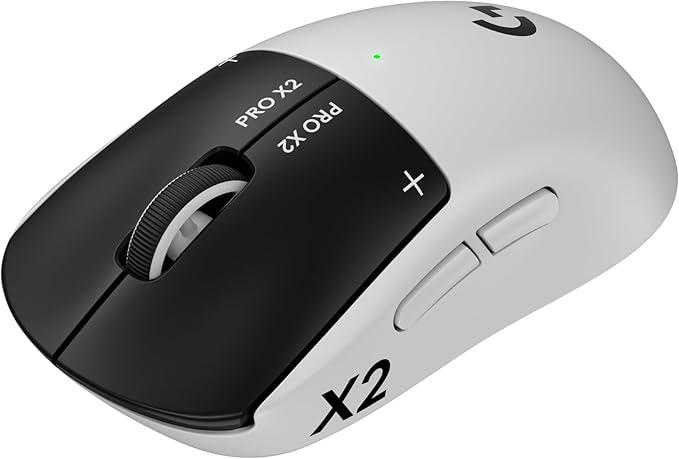
Logitech G PRO X2 Superstrike Wireless — best precision pick
If you do a lot of fine pointer work — CAD, design tools, diagramming, or competitive gaming on breaks — the G PRO X2 Superstrike is the premium option. Symmetrical shape means you can run it left- or right-handed, which matters if your impingement is unilateral and you want to spell the affected shoulder by switching sides for a few weeks. The Hero 2 sensor and Lightspeed wireless give you flawless tracking, and the ambidextrous shape sits naturally close to a split keyboard’s right half. Check the Logitech G PRO X2 on Amazon.
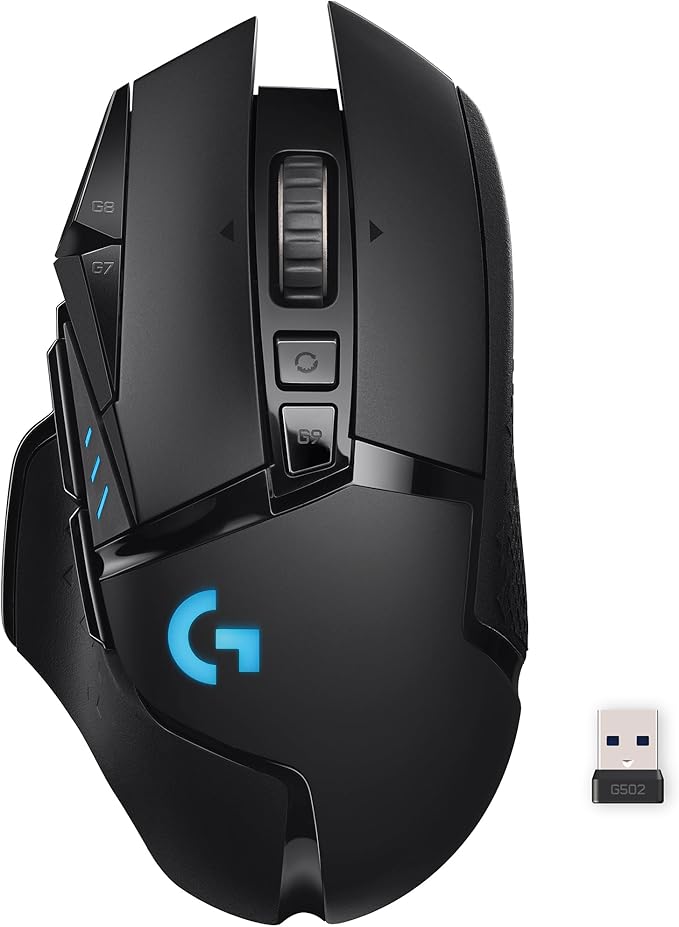
Logitech G502 Lightspeed Wireless — best ergonomic-shape pick
The G502 is heavier (114g) but its right-hand-sculpted shape supports the palm and ring/pinky finger in a way symmetrical mice don’t. For programmers who rest the hand on the mouse for hours rather than constantly repositioning, that passive support reduces low-level forearm tension. The Hero 25K sensor handles any DPI you want, and the side-button cluster is genuinely useful for IDE shortcuts. Heavier than ideal for severe impingement, but excellent if your main issue is fatigue rather than acute pain. Check the Logitech G502 on Amazon.
Quick comparison
| Mouse | Weight | Shape | Wireless | Best for |
|---|---|---|---|---|
| Logitech G305 Lightspeed | 99 g | Ambidextrous compact | Yes (Lightspeed) | Lightest load on the shoulder |
| Logitech G PRO X2 Superstrike | ~60 g | Symmetrical | Yes (Lightspeed) | Switching hands during recovery |
| Logitech G502 Lightspeed | 114 g | Right-hand sculpted | Yes (Lightspeed) | Passive palm support for long sessions |
Setting up your split keyboard for shoulder relief
Buying the keyboard is 40% of the win. The other 60% is positioning.
- Chair first. Adjust seat height so your elbows fall at 90–110 degrees with shoulders relaxed downward. If your chair has armrests, set them to support the elbow without lifting the shoulder. A lifted shoulder is an impinged shoulder.
- Place each half under the respective shoulder. Drop your arms straight down, then bend at the elbow. Your hands land where the keyboard halves should sit. Don’t overcorrect outward — if you have to abduct your shoulder to reach the keys, you went too wide.
- Add tenting incrementally. Start at 10 degrees for the first week. If your forearms still feel pronated and tight, add 5 degrees. Most shoulder-impingement users land between 15 and 25 degrees.
- Negative tilt the back edge. Many split keyboards include rear feet that flip down, or you can mount the halves on small tripod plates. Aim for 5–10 degrees of negative tilt.
- Bring the mouse in. Place it immediately to the right of the right keyboard half, not at the desk edge. This is where the lightweight wireless mouse pays off — you can pick it up and reposition without re-routing a cable.
For more on workstation geometry, see our desk setup guide for shoulder impingement and the best vertical mice for programmers if you want to test that direction first.
What about gaming on the same setup?
Split keyboards are genuinely excellent for gaming once you remap. WASD becomes whatever cluster you want on the left half, and the thumb keys handle abilities that normally cramp the pinky. The Lightspeed mice listed above are all competition-grade, so the same setup that protects your shoulder during a 10-hour debugging session also handles ranked matches without compromise. If you want a dedicated gaming-focused breakdown, our best wireless gaming mice 2026 roundup goes deeper on sensor and latency specs.
Frequently Asked Questions
How long does it take to adjust to a split ergonomic keyboard?
Most programmers regain 80% of their original typing speed within 7–10 days and full speed within 3–4 weeks. Columnar layouts take slightly longer than split-but-staggered layouts. The shoulder relief usually shows up before the typing speed does — many users report reduced impingement symptoms within the first week.
Is a split keyboard better than a vertical mouse for shoulder impingement?
They solve different problems. The split keyboard fixes the fundamental geometry of arm position during the 70–80% of programming time spent typing. A vertical mouse helps the 20–30% spent on the mouse but doesn’t fix shoulder abduction reach. If you can only do one, do the split keyboard first — the leverage is much higher.
Do I need a mechanical split keyboard or will a membrane work?
Switch type matters less than geometry. A well-positioned membrane split will help your shoulder more than a poorly-positioned mechanical one. That said, programmers benefit from low-actuation-force mechanical switches (35–45 g) because reduced finger force translates to reduced forearm tension and reduced shoulder compensation over an eight-hour day.
What tenting angle is best for rotator cuff issues?
Start at 10 degrees and work up. Studies on neutral forearm posture suggest 15–30 degrees of tenting puts the forearm in the best position for shoulder external rotation. Going beyond 45 degrees can shift load to the biceps tendon, which is often co-irritated in impingement, so back off if you feel anterior shoulder pain after high tenting.
Can I use a split keyboard with a laptop?
Yes, and you should if shoulder impingement is the driver. The laptop’s built-in keyboard forces the worst possible geometry: arms internally rotated and shoulders hiked. Connect a split keyboard via USB or Bluetooth and put the laptop on a stand at eye level so the screen, keyboard, and mouse can each be positioned independently.
Will my employer cover a split ergonomic keyboard?
Most US employers with formal ergonomic programs will reimburse a documented medical-need purchase up to $300–$500. Get a one-page note from your physical therapist or physician stating “split ergonomic keyboard medically indicated for shoulder impingement.” Submit it with your HR ergonomic request. Approval rates are above 80% when the request is medically documented.
What’s the difference between split, ergonomic, and tented keyboards?
“Ergonomic” is a marketing term with no fixed definition — a curved unibody Microsoft Sculpt is sold as ergonomic but doesn’t solve shoulder geometry. “Split” specifically means two physically separate halves. “Tented” means the halves are tilted laterally. For shoulder impingement, you want all three: a true split that is also tented and that the manufacturer has explicitly designed with negative-tilt mounting options.
Is wireless better than wired for an ergonomic setup?
Wireless lets you position each half exactly where your shoulders want them without a cable pulling either half off-axis. The downside is two more things to charge. For mice, wireless is now genuinely better than wired across the board — Lightspeed and equivalent protocols have zero noticeable latency for programming or gaming.
Key Takeaways
- Choosing the right best split ergonomic keyboards for programmers with shoulder impingement means matching capacity and output ports to your actual devices
- Always check actual watt-hours (Wh), not just watts — runtime depends on Wh, not peak output
- Also covers: split keyboard shoulder pain coder
- Also covers: ergonomic keyboard shoulder impingement
- Also covers: moonlander zsa shoulder relief
- Compare price-per-Wh across models to find the best value for your budget